Processing documents…
Extracting text and positions

Compare & Find Difference

The fastest way to see changes between two PDF, DOCX, or text files.

ORIGINAL (v1.0) - let theme = "light"; initApp(theme); // legacy config
MODIFIED (v2.0) + const theme = "dark"; initApp(theme); + applyDarkMode();
Original No file selected
Modified No file selected
Drop original file here
or click to browse
PDF · DOCX · DOC · PPTX
Drop modified file here
or click to browse
PDF · DOCX · DOC · PPTX

Step-by-Step Guide

How to Compare PDF, DOCX & PPTX Files

Upload two documents, click Compare, and instantly see every difference highlighted — side by side or combined. No software needed, no account required.

100% Private

Files never leave your browser. Zero server uploads ever.

Instant Results

Client-side PDF.js & Mammoth.js — no waiting for servers.

Multi-Format

PDF, DOCX, DOC, PPTX, and plain text — all in one tool.

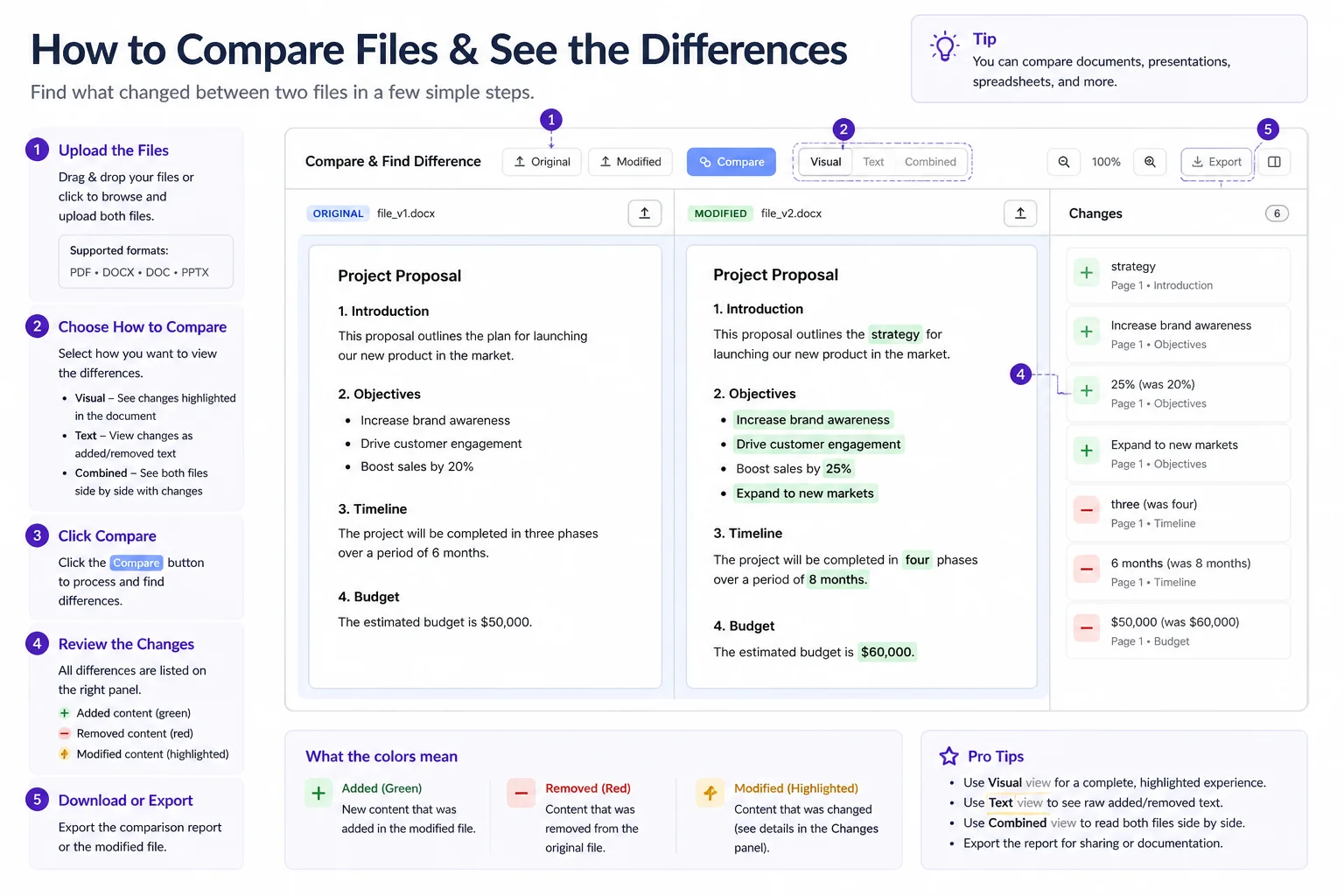
Upload Your Two Files

Drag and drop your original file into the left panel and the modified file into the right panel — or click "Choose File" to browse. Supported formats include PDF, DOCX, DOC, PPTX, and plain text. You can also paste text directly into either panel for instant comparison.

Tip: For scanned PDFs (image-only), use our Image to Text tool first to extract the content, then paste into either panel.

Click Compare

Hit the "Compare" button to run the diff engine. Text is extracted from your files using PDF.js for PDFs and Mammoth.js for Word documents, then compared using the Myers diff algorithm — word by word, instantly in your browser.

Tip: Switch between Side-by-Side and Combined view at any time to change how differences are displayed.

Review Highlighted Differences

Every change is color-coded for instant scanning. Added text appears in green and removed text in red. In Combined view, deletions show as strikethrough inline with insertions highlighted. Use the navigation arrows to jump between changes.

Original
The agreement is valid until 31st December 2024 unless terminated earlier.
Modified
The agreement is valid until 30th June 2025 unless terminated earlier.

Export the Diff Report

Click "Export" to download a plain-text report listing every addition, deletion, and modification with line references and a total change count. Perfect for attaching to pull requests, legal redline submissions, or academic revision records. No data is retained after you close the tab.

Tip: The diff report is fully self-contained — share it alongside the two source documents for a complete record of every change.
File compare interface showing side by side diff with green additions and red deletions highlighted across PDF and DOCX documents

Side-by-side diff view highlights every added (green) and removed (red) word inside PDF, DOCX, and plain text files — fully private, fully browser-based.

Who Uses This Tool

Built for Every Document Comparison Need

From developers reviewing configs to lawyers redlining contracts — anyone who needs to know exactly what changed between two file versions.

Code Review

Developers & Git Diffs

Compare configuration files, JSON responses, SQL migration scripts, or any plain-text code without opening a terminal. Paste two versions and see exactly what changed — variable names, values, and operators — faster than running git diff.

Config filesJSON diffsSQL scriptsCode review
PDF Redlining

PDF Document Comparison

Upload two PDF versions of the same document — contracts, reports, invoices, or policy documents. Text is extracted via PDF.js and every changed sentence, paragraph, or clause is immediately highlighted without any plugin or desktop software.

Contract PDFsInvoice versionsPolicy updatesReports
Legal & Compliance

Legal Professionals

Compare contract versions, terms of service updates, privacy policy amendments, or compliance filings. Every modified clause, added provision, and removed sentence is flagged — producing a reliable redline in seconds without manual markup or expensive software.

Contract redlinesToS changesClause trackingCompliance docs
Collaboration

Teams & Remote Collaborators

Reconcile two team members' edits on the same DOCX or PDF without needing to enable Track Changes or set up version control. Compare meeting notes, project specs, or design briefs before finalizing — great for remote teams sharing files by email.

DOCX compareTeam briefsSpec reviewMeeting notes
Academic Writing

Students & Researchers

Compare thesis drafts, research paper revisions, or annotated bibliographies across submission rounds. See exactly which sentences were reworded, added, or cut after supervisor feedback — no account needed, no citation data ever uploaded.

Thesis draftsPaper revisionsResearch editsAnnotations
CV & Cover Letters

Job Seekers

Maintain multiple tailored versions of your résumé or cover letter and verify edits before submitting. Compare two DOCX or PDF versions to confirm your targeted changes landed correctly — without manually hunting through file versions one by one.

Résumé DOCXCover letter PDFBefore & afterApplication docs

Format Deep Dive

Which File Format Should You Compare?

Different document types have different strengths for comparison workflows. Here's everything you need to know.

Formats That Work Directly

  • PDF (text-based) — Extracted via PDF.js; most contracts, reports, and forms compare perfectly
  • DOCX / DOC — Word documents converted cleanly via Mammoth.js with full paragraph support
  • PPTX — Slide text extracted and compared paragraph-by-paragraph across slides
  • Plain text (.txt, .md, .csv) — Fastest and most accurate; ideal for code, logs, and data
  • Pasted text — No file upload needed; paste any content directly into either panel

Formats That Need Pre-Processing

  • Scanned PDFs — Image-only; use our Image to Text (OCR) tool first, then paste the result
  • PNG / JPG / HEIC images — Run through OCR first to extract text before comparing
  • Password-protected PDFs — Remove document protection before uploading
  • XLSX / spreadsheets — Export the relevant sheet range as CSV or paste cells as plain text

Side-by-Side vs. Combined View — Which to Use?

Feature Side-by-Side View Combined View
Best forReviewing two distinct versions simultaneouslyFinal proofreading and change summaries
Deletions shown asRed background on left panel textRed strikethrough inline in unified view
Additions shown asGreen background on right panel textGreen highlight inline in unified view
Reading flow✅ Easy to compare full context✅ Single linear document flow
Long documents✅ Best — scroll both panels together⚠️ Can become dense with many changes
Legal redlining⚠️ Requires focus across two panels✅ Industry-standard tracked-changes style
Export outputPlain text diff with line numbersUnified plain text diff report

FAQ

Frequently Asked Questions

Everything you need to know about our free file comparison tool.

Is this file comparison tool really free with no uploads?

Yes, completely. Everything runs in your browser using PDF.js, Mammoth.js, and a JavaScript diff engine. Your files never reach any server. No sign-up required, no data stored — you can verify this by running a comparison while fully offline.

What file formats does the comparison tool support?

PDF (text-based), DOCX, DOC, PPTX, and plain text are fully supported. For scanned PDFs or image files, use our Image to Text (OCR) tool first to extract content, then paste the result into either comparison panel.

How does the diff algorithm work for document comparison?

We extract plain text from your files using PDF.js (for PDFs) and Mammoth.js (for Word documents), then run the Myers diff algorithm at the word level — the same method used by Git. This finds the minimum set of changes needed to transform one document into the other.

What is the Combined view and when should I use it?

Combined view merges both documents into a single unified view — deletions appear as red strikethrough and insertions as green highlights inline. It replicates the traditional tracked-changes style ideal for legal redlining and final proofreading.

Can I compare scanned PDFs or image-based documents?

Scanned PDFs contain images rather than selectable text, so they cannot be compared directly. Use our Image to Text tool to run OCR on the scanned document first, then paste the extracted text into either panel as plain text.

Can I export the comparison results?

Yes. Click the Export button to download a plain-text diff report listing every addition, deletion, and modification with line references and a total change count. Ideal for attaching to pull requests, legal submissions, or academic revision logs.

Are there file size or document length limits?

There are no enforced limits. Very large documents (50+ pages or 10,000+ lines) may take a moment to process depending on your device. Most standard documents process instantly. Since everything runs locally, performance is determined by your hardware.

How is this different from Track Changes in Microsoft Word?

Track Changes only works if changes were recorded while editing in Word. Our tool compares any two file versions — even if Track Changes was never enabled — by extracting their text and computing the diff on the fly, with no Microsoft account or subscription needed.

Compare Files Free — Instant & 100% Private

Your documents never leave your device. No account needed. No watermarks. No limits. Upload two files and see every difference highlighted in seconds.

100% PrivateFiles never leave your browser
Myers Diff EngineWord-level, Git-grade precision
PDF, DOCX, PPTXAll major formats supported
No RegistrationNo account or login needed
Export ReportsDownload diff results anytime
Cross-PlatformWorks on any device or OS