Text to Image Instantly.

Transform any text into beautiful, shareable images. Customize fonts, colors, and export with one click. Fully client-side — your text never leaves your browser.

Your Text Input
Generated Preview
⬇️ Your image appears here
1080 × 1080 px
Fit
Click canvas to type · Drag to reposition

Select Emoji

Step-by-Step Guide

How to Turn Text Into a Stunning Image

Type your text, pick a font and background, add effects, and download a pixel-perfect PNG — all inside your browser in seconds. No Photoshop, no account required.

100% Browser-Based

Everything renders on your device via HTML5 Canvas — zero server processing.

Instant Preview

Live canvas updates as you type — every change reflects in real time.

Pro-Grade Output

Export at up to 3× resolution — crisp for print, social, and web.

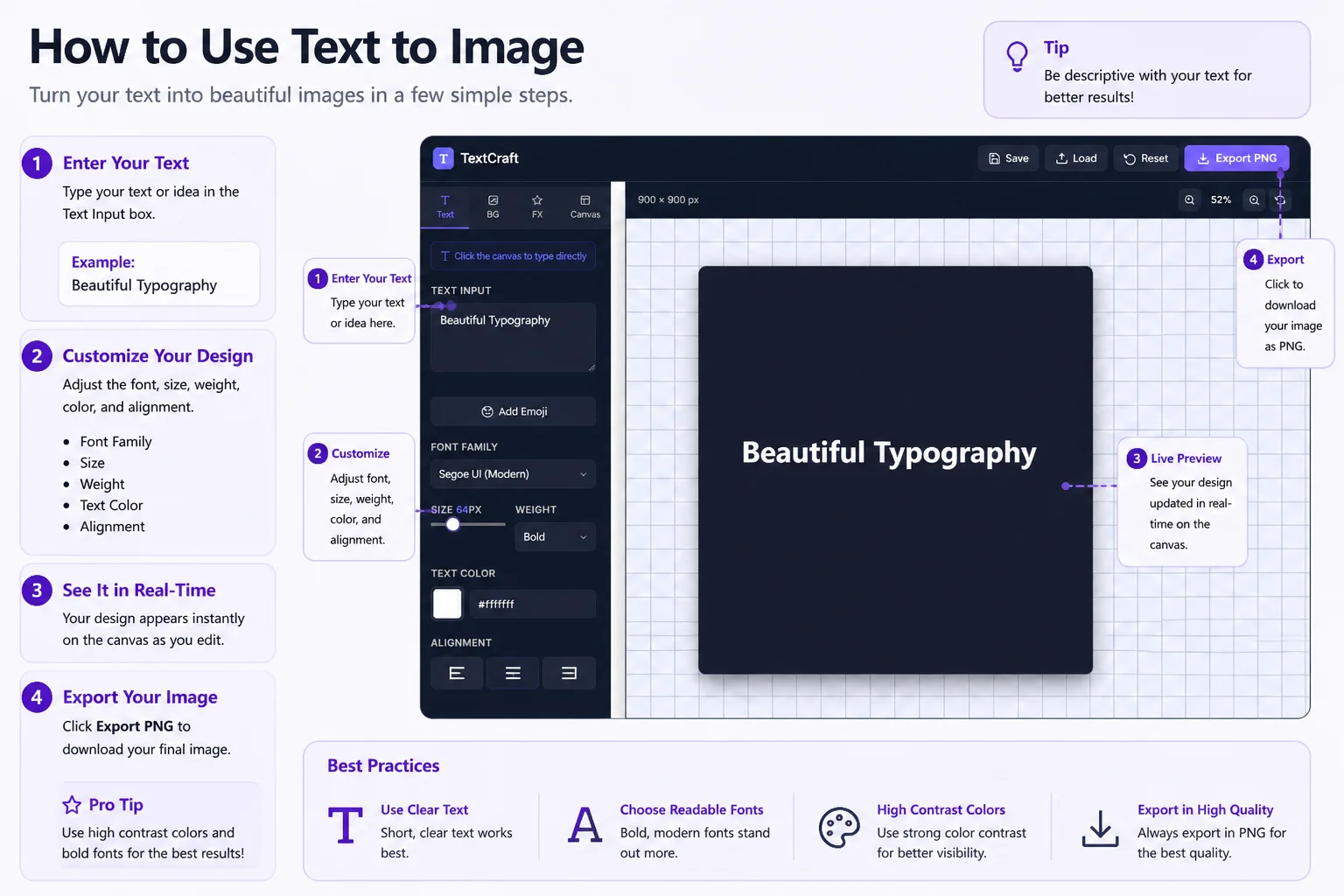
Enter Your Text on the Canvas

Click directly on the canvas to start typing — your text appears live as you write. On mobile, use the Text Input field in the sidebar to enter or edit your content. You can type multiple lines, add emoji using the emoji picker, and adjust line height and letter spacing for precise control over how your text looks.

Tip: Use the Position sliders or drag the text on canvas to place it exactly where you want it. Hit "Center Text" for a perfectly balanced layout instantly.

Choose Font, Color & Background

Select from 30+ Google Fonts — from elegant serifs like Playfair Display and Cinzel to bold display faces like Bebas Neue and Unbounded. Set your text color using the color picker or hex input, then switch to the BG tab to pick a solid color, a gradient, or upload your own background image. Use the blur and brightness sliders to fine-tune image backgrounds.

Tip: Try one of the gradient presets for an instant professional look — the purple-to-magenta and ocean-to-mint gradients work especially well for social media posts.

Apply Text Effects & Canvas Size

Head to the FX tab to add depth and polish. Enable a text shadow with custom offset, blur, color, and opacity. Toggle a stroke outline for bold typographic emphasis. Turn on the glow effect and dial in radius and intensity for neon-style or dreamy text. Switch to the Canvas tab to pick from presets like Square (1080×1080), Story (1080×1920), YouTube thumbnail, OG Image, or enter any custom size.

Shadow
Stroke
Glow
Rotation
Opacity
Italic
Underline
UPPERCASE

Export Your PNG Image

Click "Export PNG" in the top right to download your image. Choose your export quality in the Canvas tab — Standard (1×) for web, High (2×) for most uses, or Ultra (3×) for print-ready output. Use Save Settings to store your current configuration as a JSON file you can reload later — perfect for maintaining consistent brand styles across multiple images.

Tip: Export at 2× or 3× resolution for Instagram and LinkedIn posts — images are downscaled by these platforms, so starting larger ensures sharp, professional results on all screens.
TextCraft interface showing a canvas with styled text over a gradient background, with font and effects controls visible in the sidebar

The TextCraft canvas lets you design, preview, and export typography-based images — with live updates, 30+ fonts, gradient backgrounds, and glow or shadow effects — all without leaving your browser.

Who Uses This Tool

Built for Every Visual Content Need

From social media managers crafting quote cards to developers generating OG images — anyone who needs sharp, text-based visuals without opening a design app.

Content Creators & Social Managers

Create eye-catching Instagram quote cards, Twitter announcement banners, Pinterest text overlays, and LinkedIn post images in minutes. Choose a preset canvas size (Square, Story, or Wide), pick a gradient, style your text, and export — no Canva subscription needed.

Quote cardsStory bannersAnnouncementsBrand posts
Dev & OG Images

Developers & Product Teams

Generate Open Graph (OG) preview images for blog posts, documentation pages, and landing pages. Set the canvas to 1200×628, type your page title and tagline, choose a background, and export — an instant social preview image for any URL, no design tool or API key required.

OG imagesMeta previewsBlog coversDocs headers
Graphic Design

Designers & Marketers

Quickly mock up typographic posters, event flyers, product launch announcements, and email header images. Combine custom background images with text shadows, glow effects, and precise positioning to produce polished assets for clients — without opening Photoshop or Figma for simple text-based compositions.

Poster mockupsEvent bannersEmail headersAd creatives
Education

Teachers & Educators

Create classroom vocabulary cards, motivational quote images for notice boards, presentation slide headers, and printable flashcards. Export at 3× resolution for crisp printing — ideal for A4 and letter-size materials that look great on any printer without specialised design software.

Vocab cardsQuote boardsSlide headersFlashcards
Branding

Small Businesses & Entrepreneurs

Produce consistent branded imagery — testimonial cards, product feature highlights, opening hour announcements, and promotional banners — using the Save Settings feature to store your brand colors and font preferences. Reload your brand preset instantly for every new image you create.

TestimonialsPromosFeature cardsBrand banners
Personal Use

Personal Projects & Gifts

Turn meaningful quotes, lyrics, or personal messages into framed art-ready images. Use elegant serif fonts like Cinzel or Playfair Display over a dark gradient for a sophisticated, print-worthy result. Export at 3× resolution and send to any online print shop — a fast, thoughtful, zero-cost gift idea.

Quote artPrint giftsWallpapersGreeting cards

Canvas Deep Dive

Which Canvas Size Should You Use?

Different platforms have different image requirements. Here's a guide to picking the right canvas size and export settings for every use case.

Preset Canvas Sizes & Best Uses

  • Square 1080×1080 — Instagram posts, Facebook posts, LinkedIn image posts; the universal safe choice
  • Story 1080×1920 — Instagram, Facebook & TikTok Stories; full-screen vertical format
  • YouTube 1280×720 — Channel banners, thumbnail mockups, and video end-cards
  • OG Image 1200×628 — Open Graph social preview for websites, blogs, and documentation
  • FB Cover 851×315 — Facebook page cover photo; also works for LinkedIn banners
  • Twitter 1500×500 — Twitter/X profile header; wide panoramic banner format
  • Blog Post 800×400 — Featured images for WordPress, Ghost, and Medium articles
  • Wallpaper 2560×1440 — Desktop wallpapers and high-resolution print-ready output

Export Quality — Which to Choose?

  • Standard 1× — Fastest download, smallest file. Good for web mockups and internal use where file size matters
  • High 2× (recommended) — Doubles pixel resolution. Stays sharp on Retina displays and when compressed by social platforms
  • Ultra 3× — Maximum crispness. Ideal for printing, large-format banners, or any output that will be significantly enlarged
  • Avoid 1× for Instagram — The platform compresses uploads; starting at 2× or 3× prevents blurry results after compression
  • Avoid 3× for OG images — Unnecessarily large files slow page load; 1× or 2× is plenty for 1200×628 social previews

Font & Effect Pairing Guide — What Works Best Together

Use Case Recommended Font Best Effect Background
Motivational QuotePlayfair Display / CinzelSoft shadow + high opacityDark gradient (navy → purple)
Tech / Dev AnnouncementFira Code / Space GroteskStroke outline + glowDark solid (#1a1a2e)
Instagram Quote CardDancing Script / PacificoDrop shadow, medium blurPastel gradient or photo BG
Bold AnnouncementBebas Neue / OswaldHeavy stroke, no shadowSolid vibrant color
Elegant Print ArtMerriweather / LatoSubtle shadow onlyOff-white (#f5f5f5)
Neon / Club AestheticUnbounded / Exo 2Glow at max intensityBlack (#000000)
Minimal Brand PostDM Sans / NunitoNo effects — clean typeBrand color solid

FAQ

Frequently Asked Questions

Everything you need to know about converting text to images with TextCraft.

Is the text to image tool really free with no watermarks?

Yes, completely free and no watermarks — ever. The tool runs entirely in your browser using HTML5 Canvas. There are no server uploads, no sign-up required, and no branding added to your exported images. What you see is exactly what you get.

What image format does the tool export?

All images are exported as PNG with a transparent or opaque background depending on your design. PNG is the best choice for text-based images as it is lossless — meaning no compression artifacts around your text edges, unlike JPEG.

Can I use my own background image?

Yes. In the Background tab, select the "Image" type and either click the upload zone or drag and drop any PNG, JPG, or WebP image. You can then adjust blur, brightness, and fit mode (Cover, Contain, or Stretch) to get the exact look you need.

How do I add emoji to my image?

Click the "Add Emoji" button in the Text tab to open the emoji picker. Browse by category (Smileys, Hand Gestures, Animals, Food, Travel, Objects, Symbols) or search by keyword. Click any emoji to insert it at your cursor position in the canvas text.

Can I save my settings and reuse them later?

Yes. Click "Save" in the top header to download your current settings as a JSON file. To restore a previous design, click "Load" and select the saved JSON — all font, color, effect, and canvas settings are restored instantly. Ideal for maintaining consistent brand styles.

What resolution should I export for Instagram?

Use High (2×) or Ultra (3×) export quality. Instagram compresses uploaded images, so starting at a higher resolution ensures your text stays sharp after compression. For a 1080×1080 canvas at 2×, you get a 2160×2160 pixel export — well above Instagram's compression threshold.

Does it work on mobile devices?

Yes. On mobile, use the Text Input textarea in the sidebar to type or paste your content — it syncs with the canvas in real time. All controls including font, color, effects, and export are fully accessible on mobile browsers without any app installation needed.

Are the Google Fonts loaded from the internet?

The font options in the font family dropdown load from Google Fonts CDN when selected. An internet connection is required for fonts beyond the device system defaults. The canvas rendering, image background upload, and PNG export all work locally and do not send any data to servers.

Create Stunning Text Images — Free & Instant

Design quote cards, OG images, banners, and posters right in your browser. 30+ fonts, gradient backgrounds, glow effects, and pixel-perfect PNG export — no account, no watermarks, no limits.

No WatermarksYour image, fully yours
HTML5 CanvasRenders entirely in-browser
30+ Google FontsSerif, sans, display & more
PNG ExportUp to 3× resolution
Save SettingsReuse your brand presets
Mobile FriendlyWorks on any device