
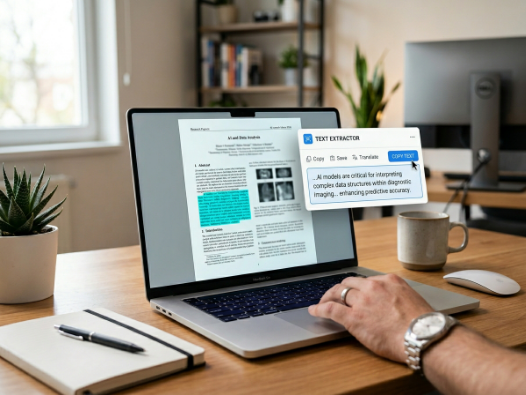
You see text you want to copy. But it is locked inside a screenshot — a flat image where no amount of clicking will let you select the words. It is one of the most common frustrations when working on a computer, and it happens to everyone.
The good news is that it is easy to fix. This guide walks you through three methods to extract text from any screenshot — from a simple browser tool to built-in OS features. Pick whichever works best for you.
Method 1 — Use a Free Online OCR Tool (Fastest)
This is the quickest method and requires no software installation. Our Image to Text tool uses OCR technology that runs entirely inside your browser, so your screenshot never gets sent anywhere.
Step-by-step instructions:
- Take your screenshot and save it (or just find the file on your desktop).
- Open diffonlinetool Image to Text in your browser.
- Click the upload area or drag your screenshot directly onto it.
- Wait about one second — the extracted text appears in the panel on the right.
- Click "Copy All" to copy the text, or select just the parts you need.
This method works on any device — Windows, Mac, iPhone, Android — as long as you have a browser. It supports JPG, PNG, WebP, and even HEIC files.
Method 2 — Use Windows Built-in Text Recognition
If you are on Windows 11, there is a surprisingly good built-in way to extract text from screenshots using the Snipping Tool.
- Open the Snipping Tool (search for it in the Start menu).
- Take a new snip, or open an existing screenshot using File → Open.
- Click the Text Actions button (looks like a cursor with lines) in the toolbar.
- The tool will scan the image and highlight all recognised text.
- Click "Copy all text" or manually select the portions you want.
This feature is only available on Windows 11 (build 22621 or later). If you are on an older version of Windows, use Method 1 instead.
Method 3 — Use Google Lens (on Mobile)
If you took a screenshot on your phone, Google Lens is an excellent option and it is already built into most Android devices.
- Open your screenshot in the Photos app.
- Tap the Google Lens icon at the bottom of the screen (looks like a camera with a coloured circle).
- Lens will automatically detect and highlight text in the image.
- Tap "Select text" and then copy the text you need.
iPhone users can use the built-in Live Text feature. Simply open the screenshot in the Photos app, press and hold on any word in the image, and iOS will let you select and copy the text directly. This works on iPhone XS and later running iOS 15+.

Which Method Should You Use?
- Fastest and most universal → Use the online OCR tool. Works on any device, any OS, any browser.
- Windows 11 power users → Use the Snipping Tool's Text Actions feature for quick in-app extraction.
- On your iPhone or Android → Live Text (iOS) or Google Lens (Android) are built right into your camera roll.
Tips for Better Results
OCR accuracy is strongly influenced by image quality. Here is how to get the cleanest output:
- Use high-contrast screenshots — Dark text on a white background works best.
- Avoid heavy compression — If you can, save screenshots as PNG rather than JPG. JPG compression creates small artefacts around text that can confuse OCR.
- Zoom in before screenshotting — The bigger the text in the image, the more accurately OCR can read it.
- Crop out irrelevant areas — Extracting just the text region gives cleaner results than processing a full-page screenshot with lots of images and UI chrome.
Common Questions
Can OCR read text in multiple languages from one screenshot?
Yes. Most modern OCR tools can detect and extract text in multiple languages within a single image. Our tool supports over 50 languages.
What if the extracted text has mistakes?
This usually comes down to image quality. Try a sharper, higher-resolution version of the screenshot. If the original image is blurry, some errors are unavoidable — just proofread the output before using it.
Is it safe to upload sensitive screenshots?
With our tool, yes — everything is processed locally in your browser and your screenshot is never sent to our servers. For other online tools, always check the privacy policy before uploading anything confidential.
Summary
Copying text from a screenshot is no longer a frustration. A free online OCR tool makes it a one-step process — upload, copy, done. Use diffonlinetool Image to Text for the fastest experience on any device, or use your OS's built-in tools when you prefer to keep everything offline.