
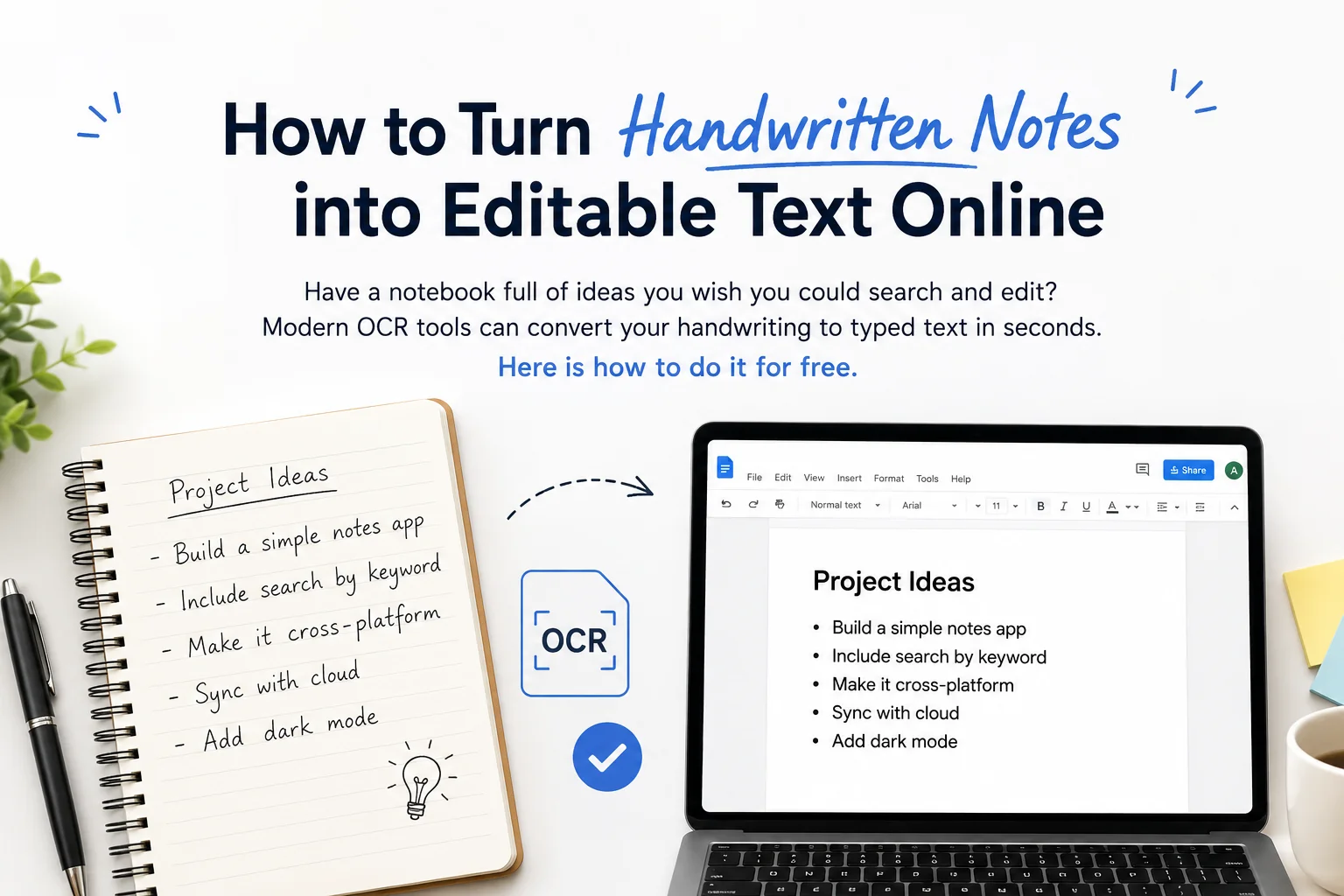
You have a notebook full of ideas, meeting notes, or study material — and you wish you could search it, share it, or edit it digitally. Retyping everything is not realistic. But converting your handwritten notes to text using a free online OCR tool takes just seconds per page.
This guide explains how to do it, what results to expect, and how to get the best accuracy from your handwriting.
How to Convert Handwriting to Text
- Photograph your handwritten notes. Use your phone camera in good lighting — natural daylight is ideal. Make sure the page is flat and in focus. Avoid shadows falling across the text.
- Transfer the photo to your computer (optional — you can also do this directly on your phone).
- Go to diffonlinetool Image to Text.
- Upload your photo. Drag and drop the image or click to browse for it.
- Copy the extracted text. Review it, make any corrections, and paste it wherever you need it.
The whole process for one page takes under a minute, most of which is taking the photo.
Tips to Get Better Handwriting Recognition
Handwriting is much harder for OCR to read than printed text. These habits make a big difference:
Write with clear letterforms
Printed (block) letters are significantly more accurate than cursive. If you are taking notes specifically to digitise later, write clearly rather than fast. The extra 10% of writing time saves much more in correction time afterward.
Use high-contrast writing materials
Dark blue or black pen on white or cream paper gives the highest contrast. Pencil on coloured paper is harder for OCR to process accurately. Felt-tip pens work very well — they produce consistent, dark lines.
Leave space between lines
Crowded lines that overlap are hard for OCR to separate. If you have room in your notebook, write with a little extra line spacing — it significantly improves accuracy.
Photograph flat pages
Pages that curve (common in bound notebooks) cause text at the edges to distort, which the OCR engine has to compensate for. Press the page as flat as possible before photographing. A flatbed scanner gives perfect results if you have access to one.
Good lighting matters most
Uneven lighting — especially shadows across part of the page — is the single biggest cause of poor OCR results on handwritten notes. Photograph near a window in natural light, or use two light sources to eliminate shadows.
What Can You Do With Digitised Notes?
Once your handwriting is text, a lot of new possibilities open up:
- Search through months of notes — Use Ctrl+F to find any topic instantly
- Paste into Google Docs or Notion — Organise and structure your notes digitally
- Share with classmates or colleagues — Send your notes as editable text, not just a photo
- Translate to another language — Paste the extracted text into Google Translate
- Use as a study guide — Copy key points into flashcard tools like Anki
- Compare with edited versions — Use our Text Diff tool to see what changed between two versions of your notes

What OCR Cannot Do Well (Yet)
Be realistic about the limitations, especially for messier handwriting:
- Very messy or rushed handwriting may need significant correction after extraction
- Mathematical equations and special symbols are hit-or-miss depending on the tool
- Diagrams, arrows, and drawings cannot be extracted as text — only the written labels can
- Very light pencil marks may not be detected reliably
For anything where accuracy is critical — like medical notes or legal documents — always proofread carefully before relying on the output.
Summary
Converting handwritten notes to editable text is one of the most practical uses of OCR technology. It saves time, makes your notes searchable, and makes them much easier to share and use. Take a clear photo, upload it to diffonlinetool Image to Text, and your handwriting becomes text in seconds. No app to install, no account needed, and your notes never leave your device.