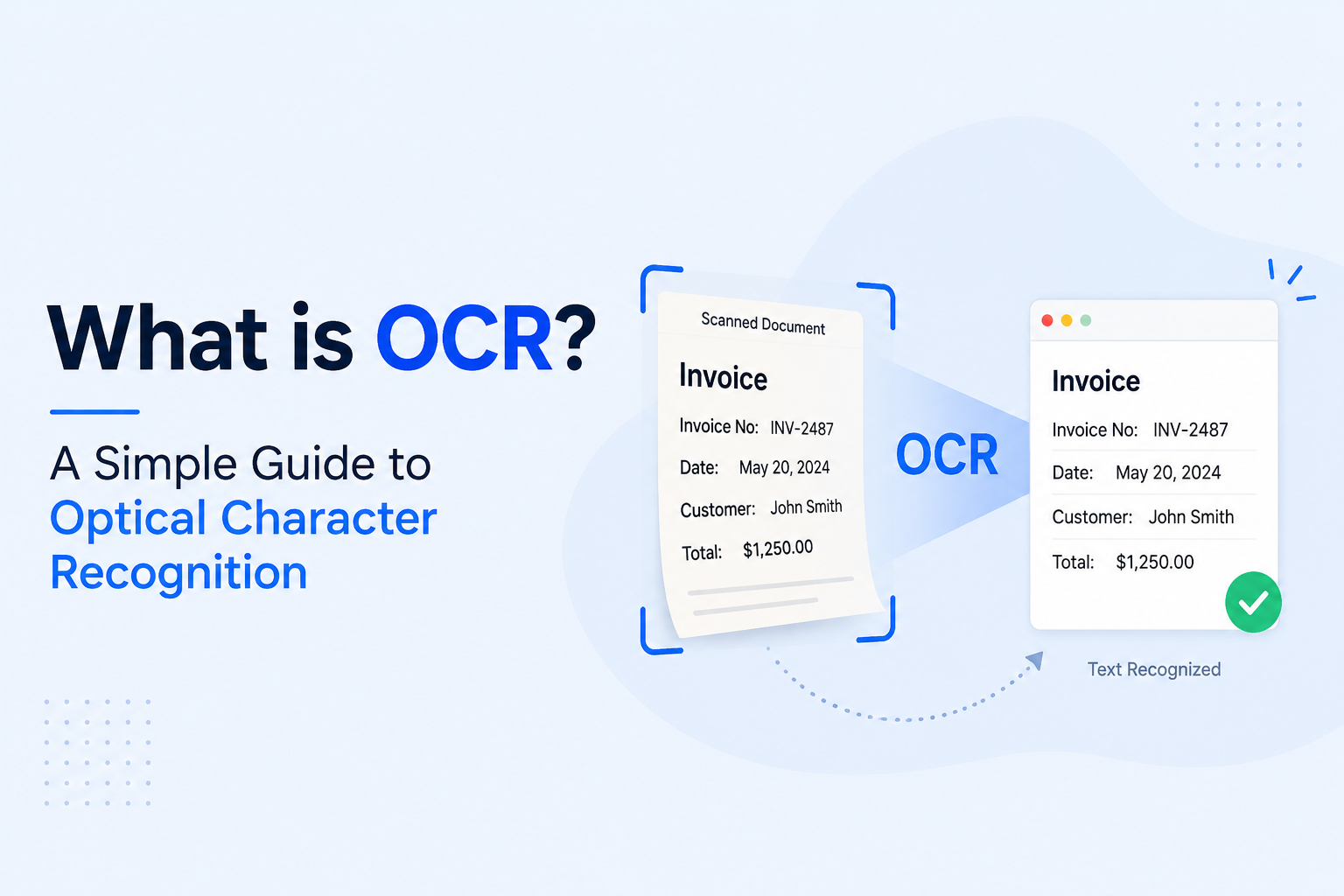
Imagine you have a scanned invoice, a photo of a whiteboard, or a screenshot of an article — and you need the text out of it right now. Retyping it by hand is slow and annoying. That is exactly the problem that OCR solves.
OCR (Optical Character Recognition) is the technology that reads text from images and turns it into something you can edit, copy, and search. It sounds complicated, but for the end user it is incredibly simple: upload an image, get your text back. This guide explains everything you need to know — in plain English.
What Exactly is OCR?
OCR is a type of software that looks at an image, identifies the shapes that form letters and numbers, and converts them into actual text characters. The output is just like text you typed yourself — you can select it, copy it, paste it into Word, translate it, or run a search on it.
Without OCR, your computer sees a scanned document as nothing more than a picture. The words in it are just a pattern of pixels — the computer cannot read them, search them, or copy them. OCR changes that by teaching the computer to recognise those pixel patterns as letters.
A Quick History of OCR
OCR is older than most people think. The first machines that could "read" printed text date back to the early 1900s and were built to help visually impaired people. IBM introduced the first commercially available OCR system in 1959, which could recognise specific fonts from typed documents.
For decades OCR was expensive, slow, and only worked with clean, printed text. Today, thanks to machine learning and modern computing power, OCR tools run instantly inside a web browser, handle dozens of languages, and can even read messy handwriting.
How Does OCR Work? (Step by Step)
Modern OCR works in four main stages. Understanding them helps you get better results from any OCR tool you use.
Step 1 — Image Acquisition
First, the OCR tool takes in your image. This could be a JPG photo, a PNG screenshot, a scanned PDF, or even a live camera feed. The tool converts it into a format it can analyse pixel by pixel.
Step 2 — Preprocessing (Clean-up)
Before trying to read any text, the software cleans up the image. It removes background noise, straightens any skew (helpful if the page was scanned at an angle), and increases contrast so that text stands out clearly from the background. This step has a huge impact on accuracy.
Step 3 — Character Recognition
This is the core step. The software breaks the image into individual characters and compares each one against a database of known letter shapes. It uses pattern matching and, in modern tools, deep learning models to decide what each character is — even with slightly unusual fonts or handwriting.
Step 4 — Postprocessing & Output
Finally, the tool runs spell-check and grammar checks to catch any recognition errors, assembles the characters into words and sentences, and hands you the finished text. The whole process happens in under a second for most images.
What Can OCR Extract?
Modern OCR is not limited to plain printed text. Depending on the tool, it can extract:
- Printed text from books, invoices, letters, and contracts
- Handwritten notes (accuracy depends on the neatness of the writing)
- Numbers and data from tables, spreadsheets, and receipts
- Text inside photos — road signs, product labels, menus
- Text from screenshots of websites, apps, or presentations
- Multiple languages — most quality OCR tools support 50+ languages
Where is OCR Used in Real Life?
You probably interact with OCR technology more often than you realise. Here are the places it quietly works behind the scenes:
Banking and Finance
Banks use OCR to automatically read cheques, process loan applications, and digitise paper statements. What used to take a clerk several minutes now happens in milliseconds — and with fewer errors.
Healthcare
Hospitals use OCR to pull data from patient records, lab results, and prescription forms. This makes updating electronic health records much faster and reduces the chance of transcription errors.
Legal and Compliance
Law firms scan thousands of pages of discovery documents and use OCR to make them searchable. Finding a specific clause in 10,000 pages of contracts goes from days to seconds.
Everyday Personal Use
Ordinary people use OCR tools every day to copy text from screenshots, extract quotes from PDF textbooks, digitise handwritten recipe cards, and pull data from receipts for expense tracking.

Key Benefits of OCR
- Saves time — Extracting text from an image takes seconds instead of minutes of retyping
- Reduces errors — Manual data entry is error-prone; OCR removes that risk
- Makes documents searchable — Scanned files are just images until OCR processes them
- Enables accessibility — Screen readers need text, not images; OCR bridges that gap
- Goes paperless — Digitise physical documents so they can be stored, shared, and backed up
Limitations to Know About
OCR is powerful but not perfect. Here are a few situations where it can struggle:
- Very messy handwriting — If a human struggles to read it, OCR will too
- Low-resolution images — Blurry or pixelated text causes recognition errors
- Complex backgrounds — Text on a busy patterned background is harder to isolate
- Unusual fonts — Decorative or distorted fonts (like CAPTCHAs) are deliberately OCR-resistant
Always proofread important OCR output, especially when accuracy matters — like copying figures from a financial document.
Try Free OCR Right Now
You do not need to download anything. Our free Image to Text tool runs entirely in your browser. Just upload a photo, screenshot, or scanned document and get the text back instantly. Your file never leaves your device — everything is processed locally.
Frequently Asked Questions
Is OCR accurate?
Yes — modern OCR tools are highly accurate for clear, printed text, often achieving 99%+ accuracy. Accuracy drops for handwriting, blurry images, or unusual fonts. Always review the output for critical documents.
What file formats does OCR work with?
Most OCR tools support JPG, PNG, WebP, TIFF, and PDF files. Our tool also supports HEIC files from iPhones.
Is OCR free?
Many OCR tools are free for basic use. Our Image to Text converter is completely free with no usage limits or signup required.
Does OCR work on handwriting?
Yes, but results vary by neatness. Printed handwriting (block letters) works very well. Cursive or very messy writing may need some correction after extraction.
Wrapping Up
OCR has gone from an expensive enterprise technology to a free tool anyone can use in their browser in seconds. Whether you want to copy text from a screenshot, digitise a stack of old documents, or automate data entry at work — OCR is the tool that makes it effortless.
Ready to try it? Upload your first image at diffonlinetool Image to Text and see the results for yourself. No signup, no download, no cost.
Want to learn more? Check out our related guides: How to Extract Text from a Screenshot and How to Turn Handwritten Notes into Text.