
JPG and PNG are both everywhere — but they are very different formats built for different jobs. Picking the wrong one does not just waste file size, it can visibly hurt your image quality. This guide explains the difference in simple terms and tells you exactly which to use for every situation.
The Core Difference in One Sentence
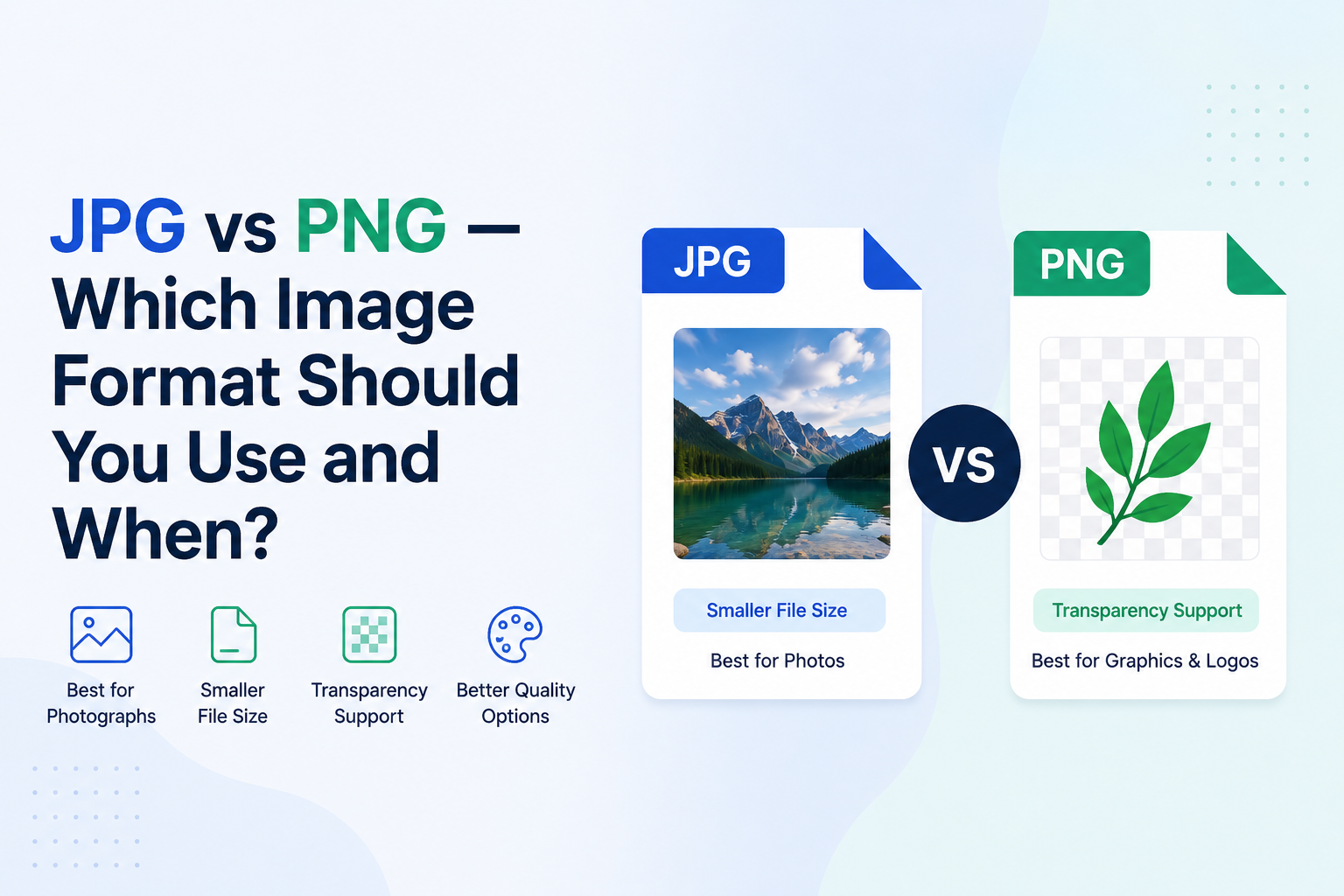
JPG is for photos. PNG is for graphics with sharp edges or transparency. Everything else follows from that.
The reason comes down to how each format compresses data:
- JPG uses lossy compression — it discards some image data to make the file smaller. For complex photos with millions of colours blending into each other, this loss is invisible to the human eye. For sharp edges and solid colours, it creates ugly blurring artefacts.
- PNG uses lossless compression — it keeps every single pixel perfectly intact. This makes files larger, but the image is always perfect — no quality loss, ever.
When to Use JPG
Use JPG for any image that is complex and photographic in nature — lots of colours, gradients, and detail where tiny imperfections will not be noticed.
- Photographs from your camera or phone
- Images for social media posts
- Banner and hero images on websites where file size matters
- Any image where a smaller file is more important than pixel-perfect accuracy
When to Use PNG
Use PNG any time you need sharp edges, transparent backgrounds, or zero quality loss.
- Logos and brand graphics
- Icons and UI elements
- Screenshots (especially those containing text — PNG keeps text crisp)
- Diagrams, charts, and illustrations with flat colours
- Any image that needs a transparent background (PNG supports alpha transparency; JPG does not)
Quick Decision Guide
- Photo of a landscape, person, or food → JPG
- Company logo or icon → PNG
- Screenshot of an app or website → PNG
- Hero image for a web page → JPG
- Image with transparent background → PNG
- Thumbnail for a blog post → JPG
- Chart or diagram → PNG
What About File Size?
JPG files are typically 3–10× smaller than PNG files of the same image, especially for photographs. For a full-colour photo at 1920×1080:
- JPG at 85% quality: ~300–500 KB
- PNG: ~2–4 MB
For a logo or icon, the difference is smaller and sometimes reversed — a simple flat-colour PNG can be smaller than the same image saved as JPG, because JPG compression adds artefacts that actually increase complexity.
What About WebP?
WebP is a newer format from Google that offers lossless compression (like PNG) at much smaller file sizes, and also supports transparency. It is now supported by all major browsers and is worth considering for web images. However, it is not as universally supported in older software and operating systems as JPG and PNG, so for general sharing, JPG and PNG remain the safe defaults.
Need to Convert Between Formats?
If you have an image in the wrong format, converting it is easy:
- JPG to PNG converter — Convert to lossless PNG with transparency support
- PNG to JPG converter — Reduce file size for photos and web images
All conversions happen in your browser. Nothing is uploaded to our servers.
Summary
The choice between JPG and PNG is straightforward once you understand what each one is designed for. Photos go in JPG. Graphics, screenshots, logos, and anything with transparency goes in PNG. When in doubt about web images, test both and see which gives you the best quality-to-size ratio for your specific image.